Printable Enclosure tutorial · Part 6 of 7
Add a second language
Add Spanish to your manual, translate every step, and choose what end users see on steps that are not translated yet.
Tutorial part 6 of 7 in the Printable Enclosure series. Add Spanish so more people can follow your manual.
- Audience: Authors who have finished Part cards and EasyPrint.
- Before you begin: The original Printable Enclosure manual at version
1.3.0, open in the editor. If you also did the optional Build options with Sections, use the original manual here, not the two-latch one. - Starting point: A manual in English with a safety note, an image, five 3D steps, closing instructions, and part cards.
- End result: The same manual with Spanish added and every step translated, published as a new version.
What we are improving
The last part left one thing on the list:
- An end user can only read the manual in English.
In this part we will add Spanish. The model, the cameras, and the order of the steps all stay the same. You are only translating the words.
1. Add a language
- Select Settings in the editor toolbar, then choose the Languages tab.
- Search for
Spanish(or type the language tages) and add it.
English, your default language, stays first in the list. Since no step has any Spanish text yet, the count beside the new language starts at zero.
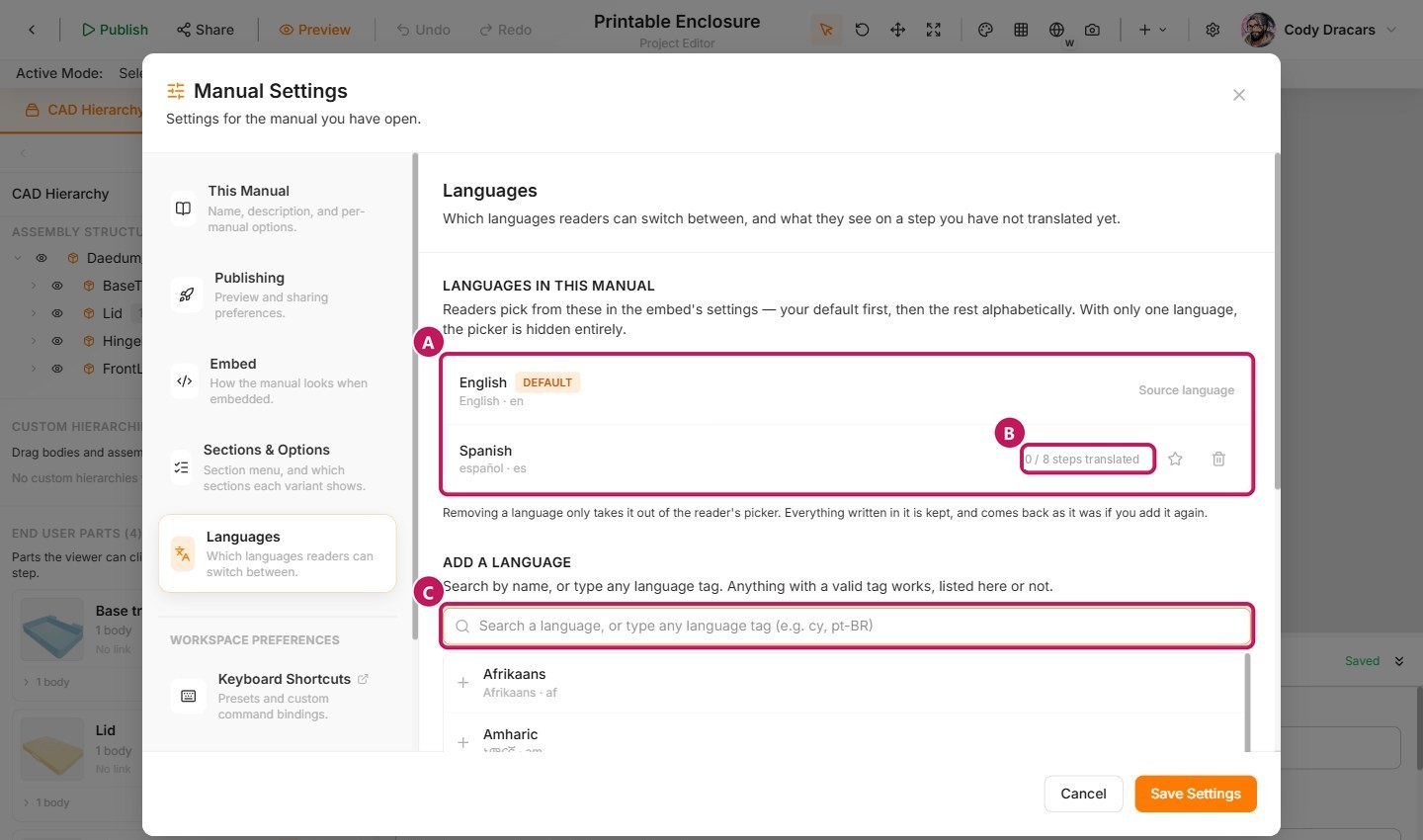
- (A) The language list, now showing both languages.
- (B) The count of how many steps are translated.
- (C) The search box.
As soon as there is a second language, a language picker shows up for end users. With only one language, it stays hidden.
2. Choose what end users see while you translate
Translating every step takes a little while, so it is worth deciding what end users see in the meantime.
Scroll down to Untranslated steps and make sure Show the default language is selected (it is the default). That way, a Spanish-speaking end user sees the English text on any step you haven't translated yet, instead of an empty step. The other option, Show nothing, leaves those steps with no text at all.
This setting applies to published versions as soon as you save it, so checking it first means nobody runs into a blank step halfway through your work. Select Save Settings once Spanish is added.
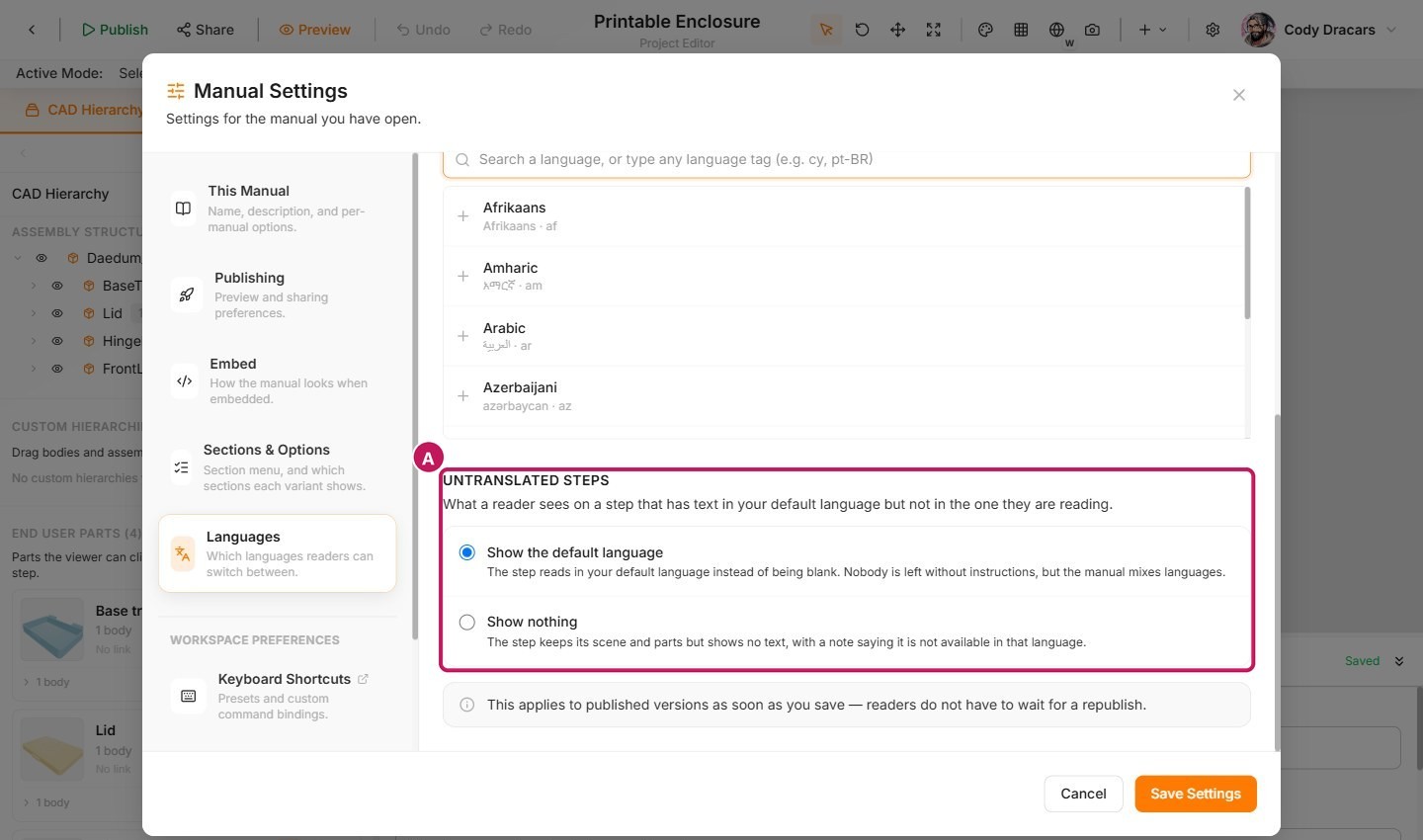
- (A) The two choices for Untranslated steps.
3. Translate each step
Step text is translated on the steps themselves, not in Settings.
- Select a step in the Steps panel.
- In the Step Content header, open the language dropdown beside the heading and choose Spanish. The fields will empty out, since nothing has been written in Spanish yet.
- Write the Spanish title and instruction. These are saved for Spanish only. Switch back to English any time to see the original.
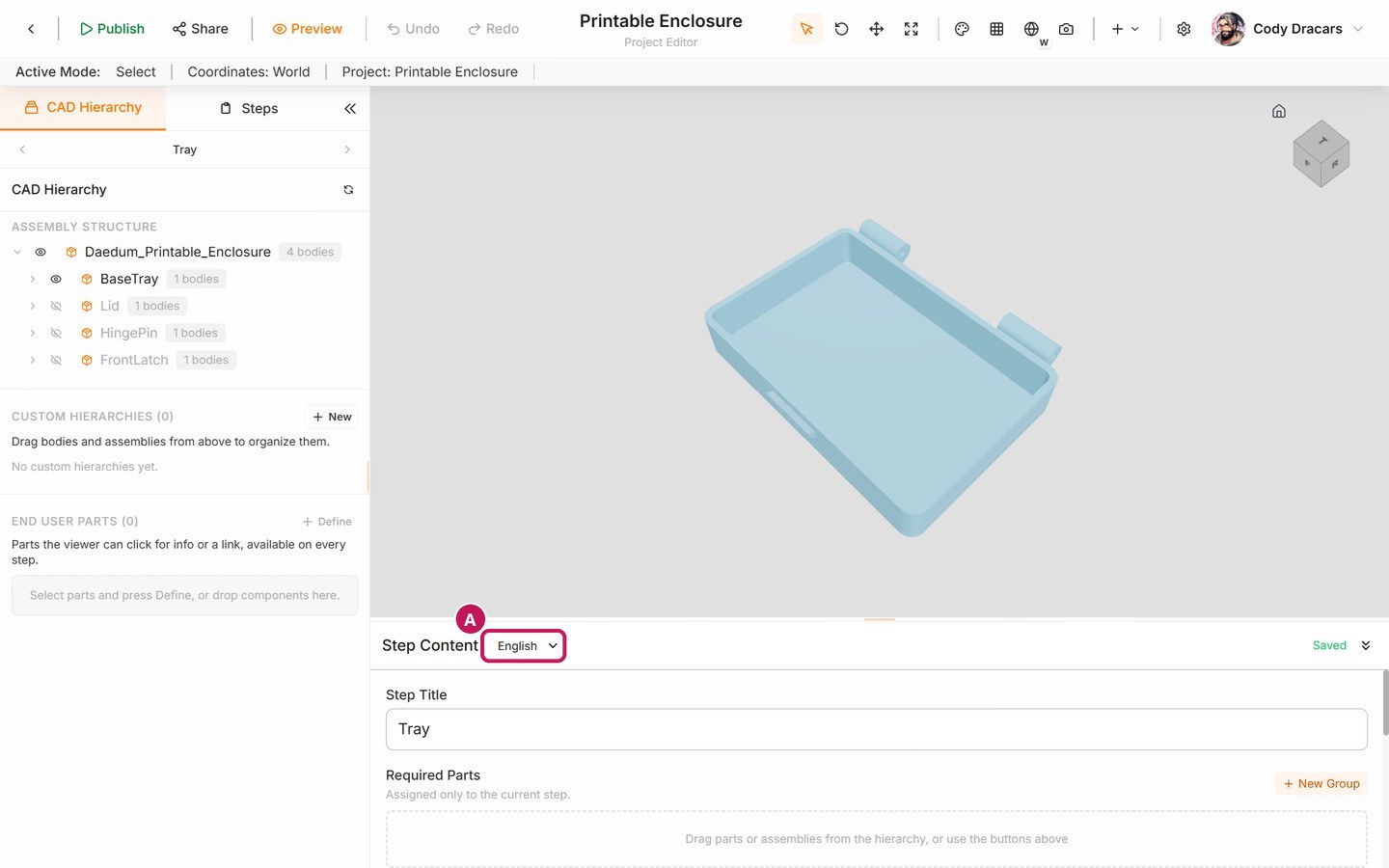
- (A) The language dropdown, which only appears once the manual has more than one language.
Here is every bit of text in the manual, ready to copy in. A 3D step or Text item has a title and an instruction, while the Image only has a page title:
| Item | Title | Instruction |
|---|---|---|
| Text: Before you start | Antes de empezar | Las piezas impresas pueden tener bordes afilados o hilos sueltos. Recórtalos con un cúter, cortando lejos de los dedos, y comprueba que el pasador se deslice. |
| Image: The finished box | La caja terminada | (no text) |
| 3D: Finished box | Caja terminada | Esta es la caja terminada. Los siguientes pasos la montan pieza por pieza. |
| 3D: Tray | Base | Coloca la base sobre una superficie plana con el lado abierto hacia arriba. |
| 3D: Lid | Tapa | Coloca la tapa sobre la base de modo que su nudillo de bisagra quede entre los dos nudillos de la base. |
| 3D: Hinge pin | Pasador de la bisagra | Introduce el pasador de la bisagra desde este lado, por los tres nudillos, hasta que su cabeza descanse contra la base. |
| 3D: Latch | Cierre | Cierra la tapa y luego desliza el cierre de lado sobre el carril de la parte delantera, en la dirección de la flecha. |
| Text: Using the latch | Cómo usar el cierre | Desliza el cierre hacia un lado para abrir la tapa. Vuelve a deslizarlo para bloquearla. |
The Languages tab keeps count as you go. Once all eight are done, it reads 8 / 8 steps translated (the Image counts too).
One thing to keep in mind: part cards don't have a language setting. Their names and descriptions, and the part names in each step's Required Parts list, stay exactly as you wrote them. So a Spanish-speaking end user will still see Base tray there.
4. Check the manual in Spanish
Select Preview (Ctrl+Alt+P). The end-user view has its own language picker in its settings: select the gear at the top right and choose a language under Idioma (Language). If you were just translating, the preview may already open in Spanish.
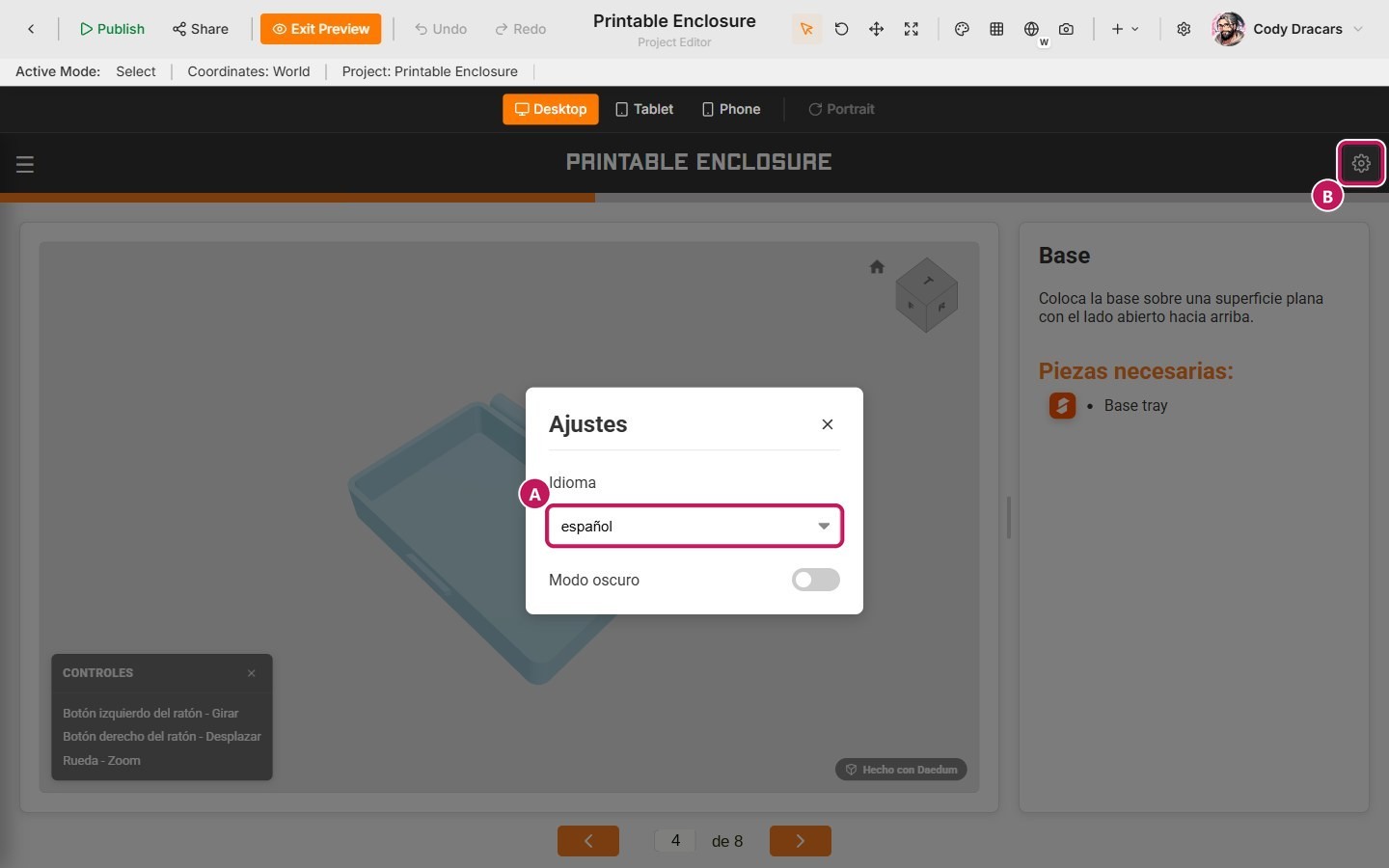
- (A) The language picker.
- (B) The settings gear that opens it.
Walk through every page in Spanish and check that:
- No English is left on the steps you translated.
- The arrows and cameras haven't changed (translating never touches them).
- The step names in the navigation menu read sensibly.
- The end-user view's own labels, such as Piezas necesarias for the parts list, are in Spanish.
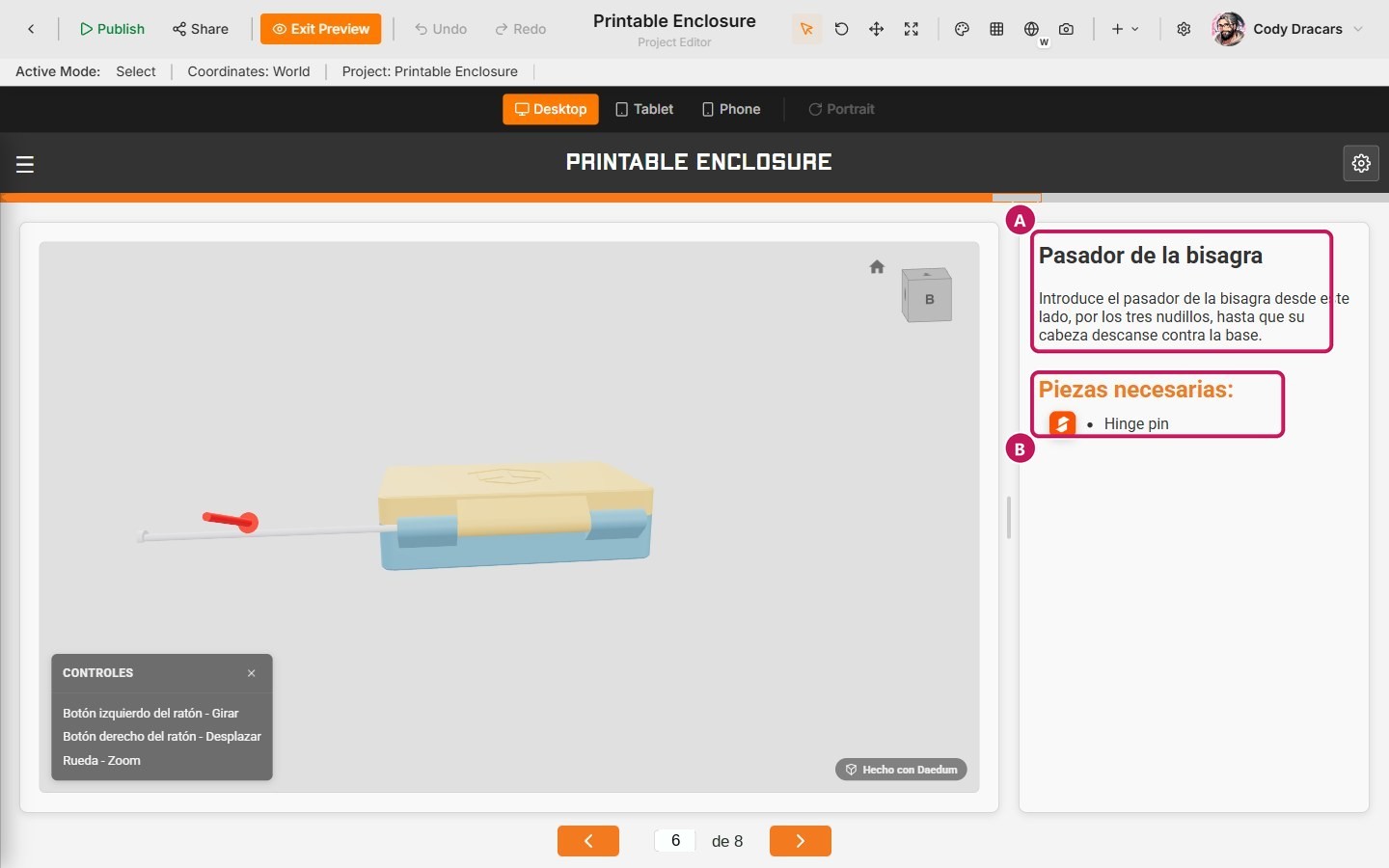
- (A) Your Spanish title and instruction.
- (B) The parts list. Its heading is in Spanish, but the part name
Hinge pinstays in English, and so does Part Cards in the navigation menu.
If you still see English on a step, that step hasn't been translated and the fallback is filling in for it. Just go back to that step and add its Spanish text.
Select Exit Preview once the manual reads cleanly in both languages.
5. Publish the new version
- Select Publish in the editor toolbar (
Ctrl+Alt+Shift+P). - After
1.3.0, the dialog offers patch, minor, and major choices. Choose minor, which makes1.4.0. - Add private release notes such as
Add Spanish. - Select Publish.
End users will now see a language picker. Publish, version, and embed covers versions and visibility.
What stays in English
Your step text shows up in every language you add. Part card text and part names aren't translated, so they stay the way you wrote them.
The embed's own interface (its buttons and labels) has been translated into about ten languages so far. If an end user picks a language outside of those, they will see your translated steps inside an interface that isn't translated.
What this manual does not do yet
The manual now reads in two languages. What is still missing:
- It hasn't been released as a finished version yet.
Versions and embeds is next: it checks the manual in both languages, publishes 2.0.0, and tests the link and the embed. These guides cover the features on their own:
- Languages — every language setting, in full.
- Publish, version, and embed — versions, public links, and embeds.