Printable Enclosure tutorial · Part 7 of 7
Versions and embeds
Choose the embed's theme, publish version 2.0.0, decide how versions are offered, and test the public link and the embed.
Tutorial part 7 of 7 in the Printable Enclosure series. Put the finishing touches on your manual and release it.
- Audience: Authors who have finished Add a second language.
- Before you begin: The original Printable Enclosure manual at version
1.4.0, open in the editor. - Starting point: A complete manual in two languages.
- End result: The same manual with a chosen theme, published as
2.0.0and tested both as a link and as an embed.
What we are improving
The last part left one thing on the list:
- It hasn't been released as a finished version yet.
This is the last part of the series, and it gets the manual ready for release. Good news: every step here works on every plan, Hobbyist included.
1. Choose the embed's theme
Select Settings in the editor toolbar, then the Embed tab.
- Under Theme when embedded, keep Match site, which follows the light or dark look of whatever website the embed sits in. You can also pick Follow device, Light, or Dark.
- If you want end users to only ever see one look, turn off Let readers switch theme.
- Select Save Settings.
2. Preview the whole manual
Select Preview (Ctrl+Alt+P) and walk through the manual in each language. This is the first time the safety note, the image, the part cards, and the translation all come together, so keep an eye out for anything that doesn't read well anymore:
- The safety note, which is the first page an end user sees.
- The image of the finished box on page 2.
- The part cards and Open in EasyPrint.
- The Spanish text, page by page.
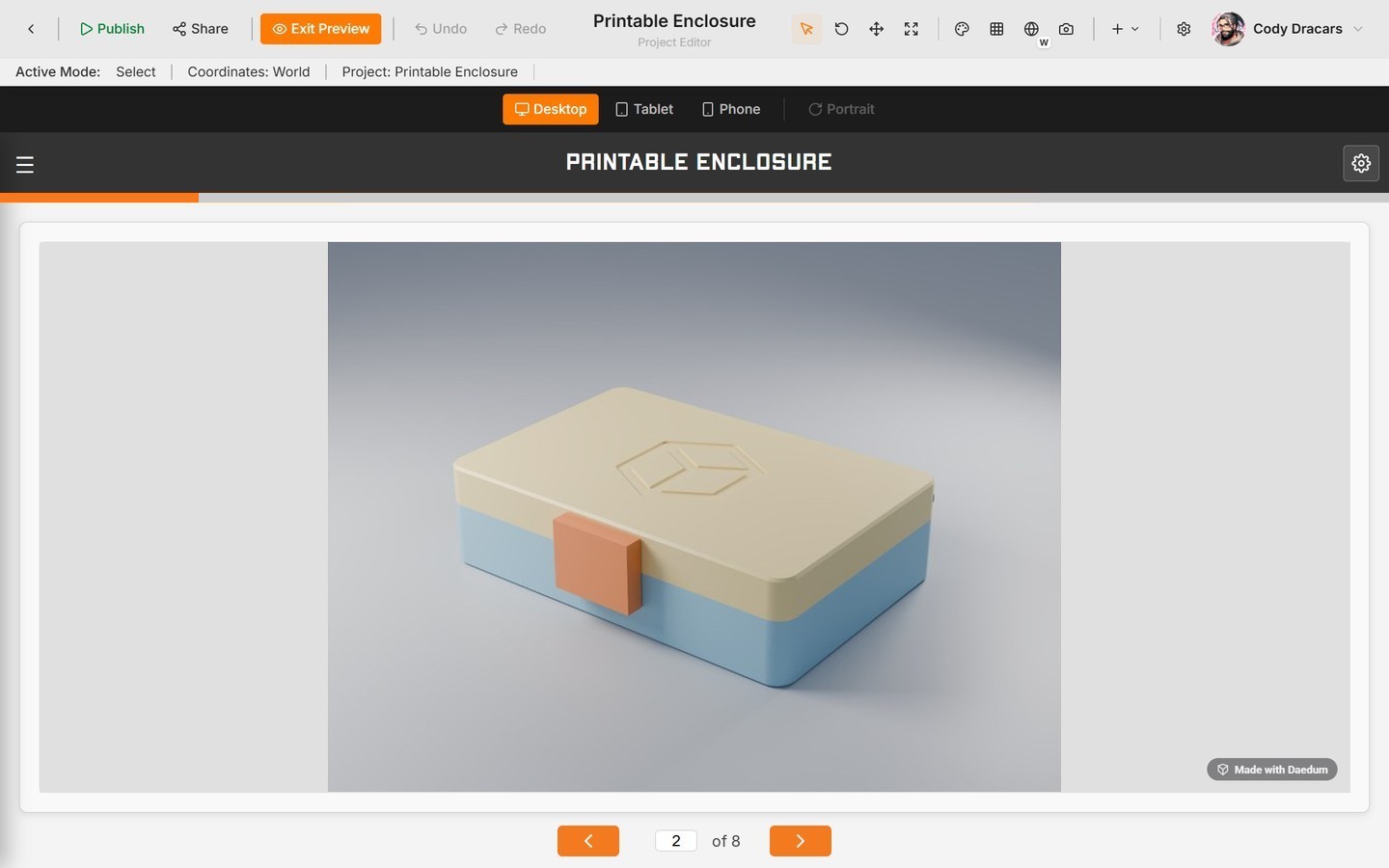
Select Exit Preview once you are happy with it.
3. Publish version 2.0.0
The manual has come a long way since 1.0.0: arrows, a safety note, an image, closing instructions, part cards, and a second language. That is worth marking with a major version.
- Select Publish in the editor toolbar (
Ctrl+Alt+Shift+P). - After
1.4.0, choose major, which makes2.0.0. - Add private release notes such as
First full release. - Select Publish.
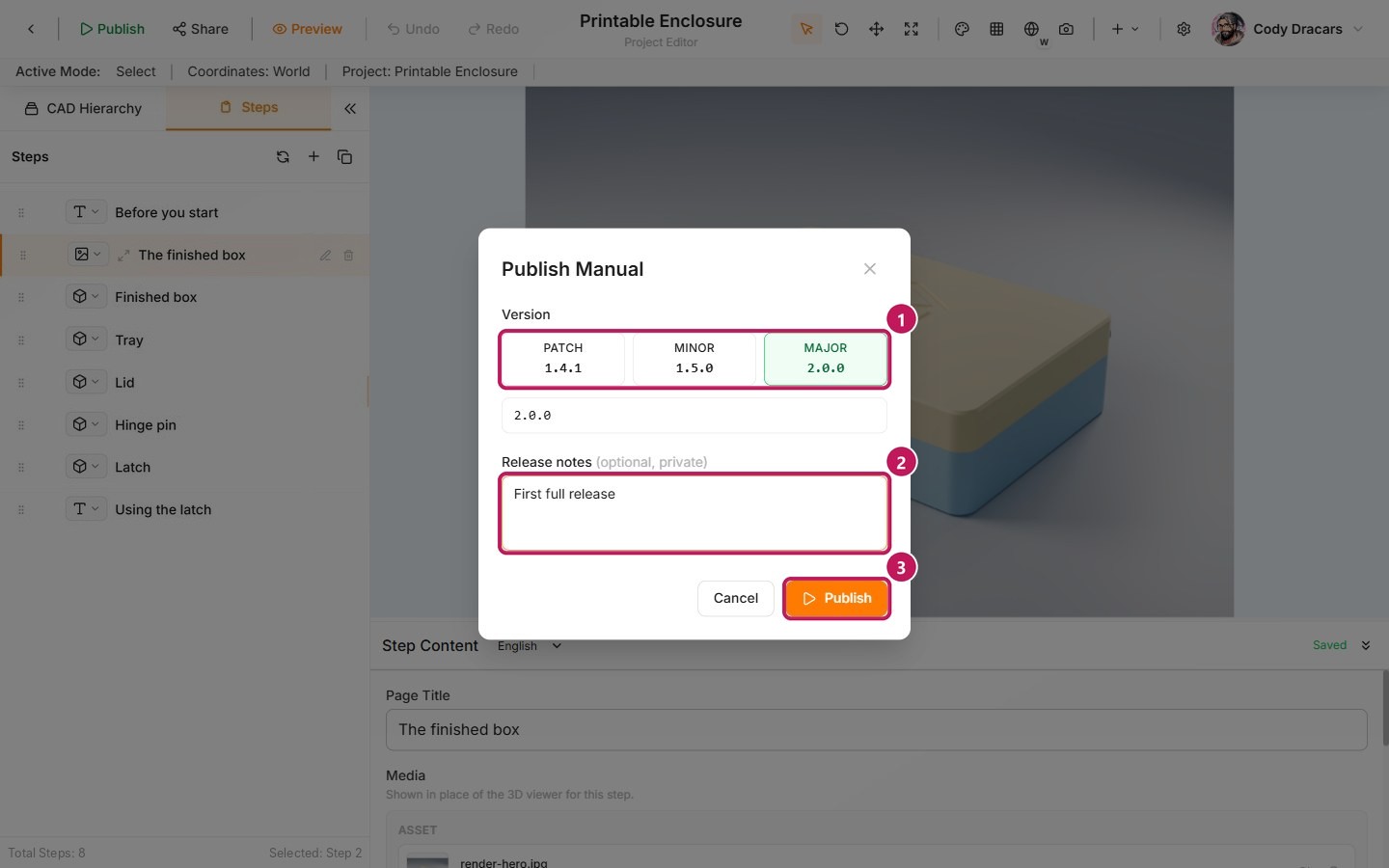
- (1) Choose major.
- (2) Add your release notes.
- (3) Select Publish.
The dialog confirms with Version 2.0.0 is now live.
4. Choose how versions are offered
Open the manual page and find the Versions card. It lists every version you have published, which is six so far. The two settings under the list decide what end users get.
- Leave Default version on Always latest visible. That way, the address always opens the newest version, including any you publish later.
- Turn off Version selector, so end users aren't offered a way to switch between versions. Only keep it on if you want end users to be able to compare them.

- (1) The Version selector switch.
- (2) The Default version, which decides what an end user gets first.
If you ever need to take the manual down, Unpublish in the Publishing panel takes every version offline at once. It doesn't delete anything.
5. Test the link and the embed
The Publishing panel on the manual page holds the public link and the embed code. It also shows how many versions are published and how many are publicly visible. Both should now read six.
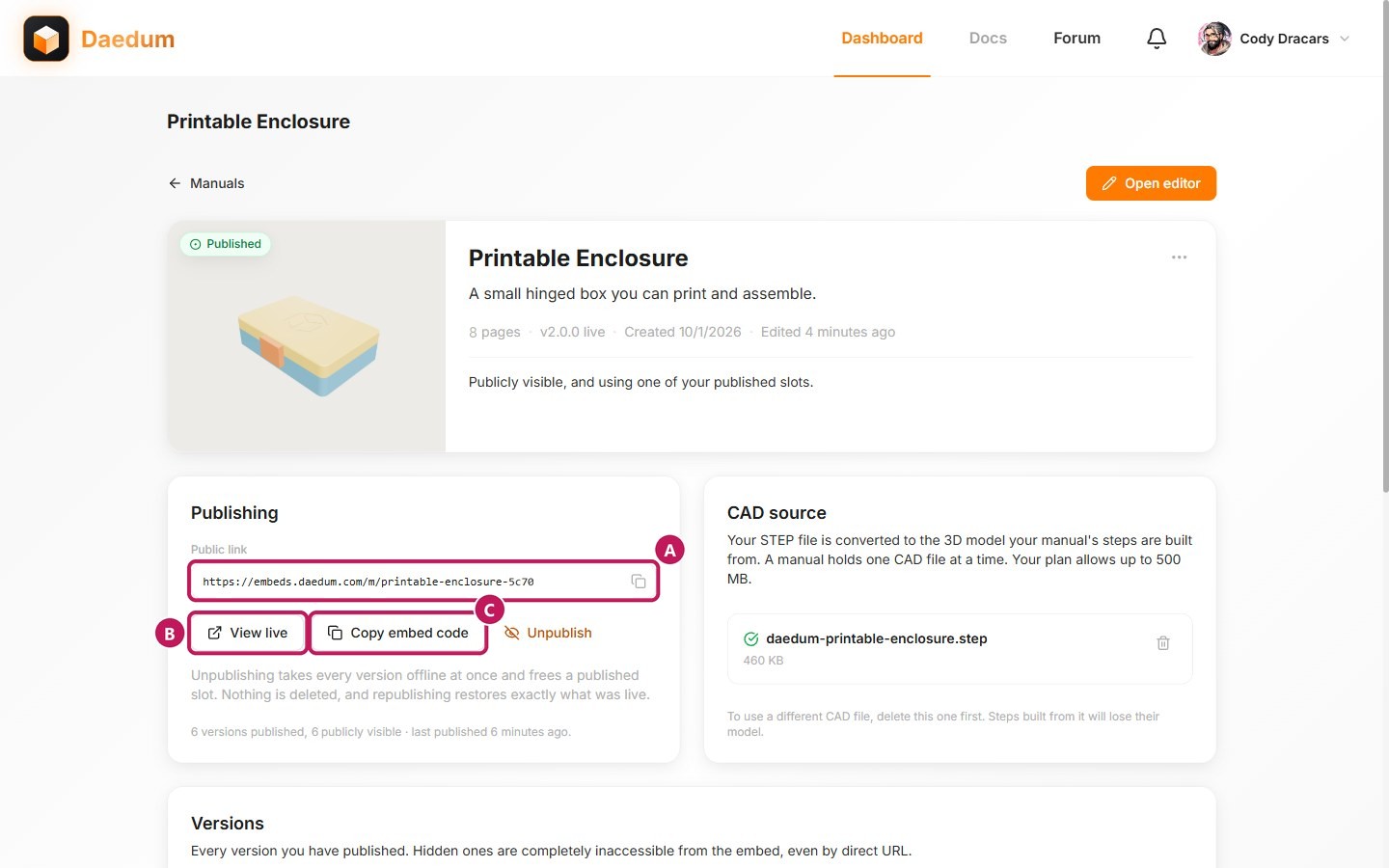
- (A) The public address.
- (B) View live.
- (C) Copy embed code.
- Select View live (B) to open the public address (A). Check what an end user gets: the first page, the theme, and Spanish from the end-user view's settings.
- Select Copy embed code (C). The code is an
iframepointing at the manual's public address, plus one smallscriptline. Paste both into a page on your own site. - Open that page and check that the manual loads inside it.
Test both before you send either one to anyone. The address is how you hand the manual to an end user, and the embed code is how you hand it to a website.
Where to go next
That's it, you have finished the series! The Printable Enclosure manual now has everything a finished manual needs: a 3D procedure with motion, a safety note and an image of the goal, part cards end users can print, a second language, and a released version you can link to or embed.
Want a friendlier link to print on a box or put in a QR code? Give the manual a readable address shows how.
These guides go deeper into each feature:
- 3D steps: visibility, cameras, and moving parts — cameras, moving parts, arrows, and procedure structure.
- Step types: 3D, Image, Text, and Section — Text and Image items, and when to use each.
- Publish, version, and embed — versions, visibility, and embeds in full.
- Troubleshooting — common states that block editing or publishing.