Features
Troubleshooting
Fix common problems with CAD conversion, missing parts, publishing limits, offline manuals, and published versions that look out of date.
- Audience: Authors who are stuck somewhere during import, editing, preview, or publishing.
- Before you begin: Figure out which stage things stopped at, and note the exact status or message Daedum shows.
- Starting point: You can open the manual page or editor in question.
- End result: Either you're unstuck, or you have a clear, specific problem to report.
The editor will not open
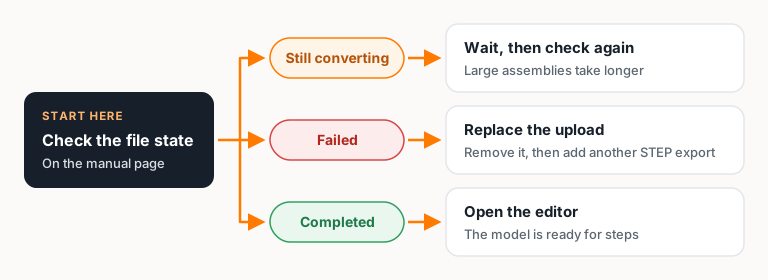
The editor needs a CAD file that has finished converting. Go back to the manual page and check the file:
- If it's still converting, wait a bit before opening the editor.
- If it failed, remove it and upload another
.stepor.stpexport.
Don't worry, replacing a failed upload doesn't lose your manual or its description. Create a manual and upload CAD walks through the export and upload.
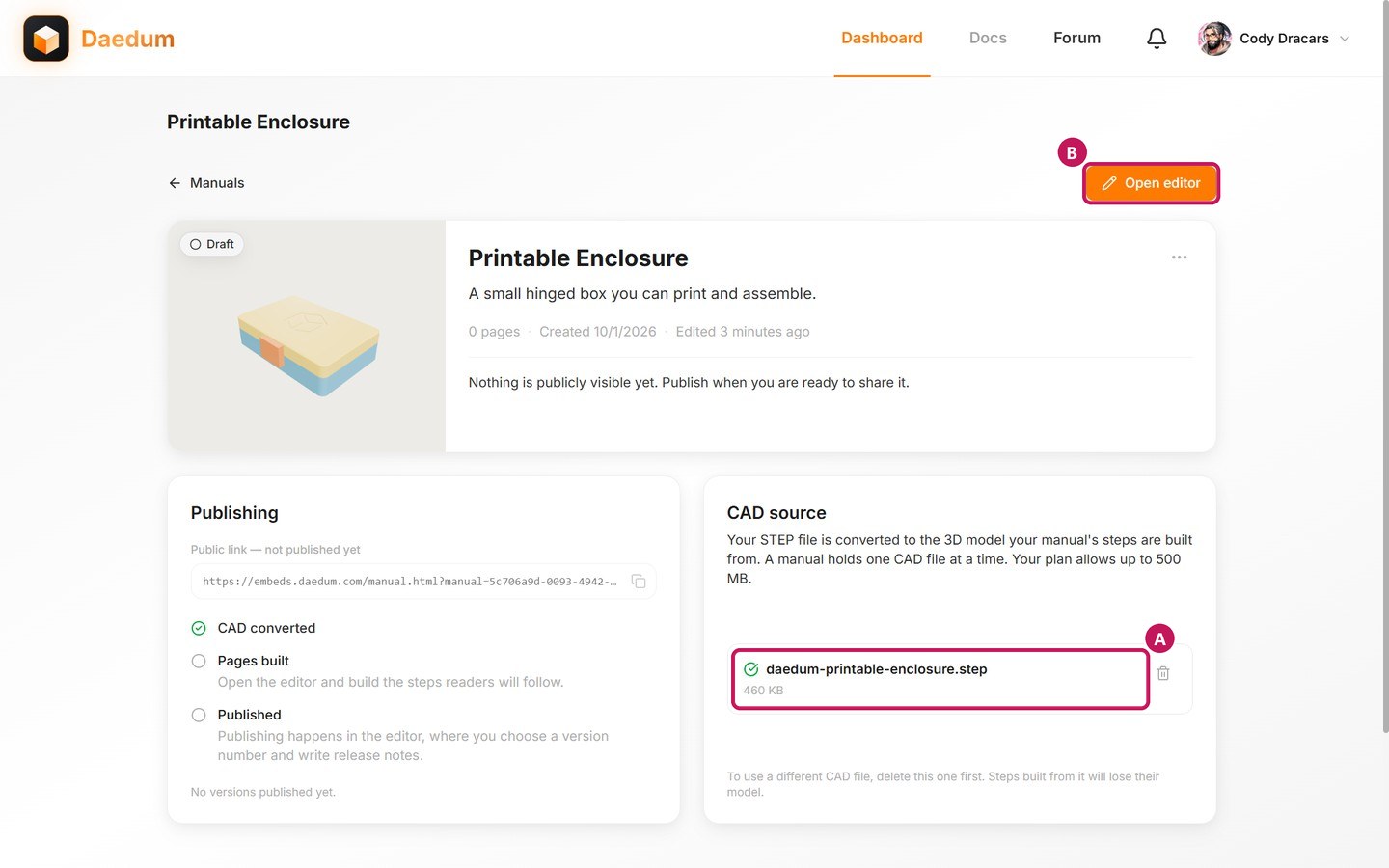
A finished conversion looks like this:
- (A) A green check beside the file.
- (B) Open editor, ready to use.
Conversion takes longer than expected
Large assemblies can take a while to convert. Keep the manual page handy and check the file again before you retry.
If nothing changes, try a smaller or cleaner STEP export. That helps you tell whether the problem is the size of the assembly or the upload itself. Upload size limits depend on your plan; see Plans and limits.
The model does not show the part I need
Start by checking the source assembly. If the part is there but hidden, use Show in CAD Hierarchy to bring it back.
The editor can focus on and frame any part in the converted model, but it can't add geometry that wasn't in the STEP export. If the source is missing parts, re-export the assembly with them included. 3D steps: visibility, cameras, and moving parts explains visibility in more detail.
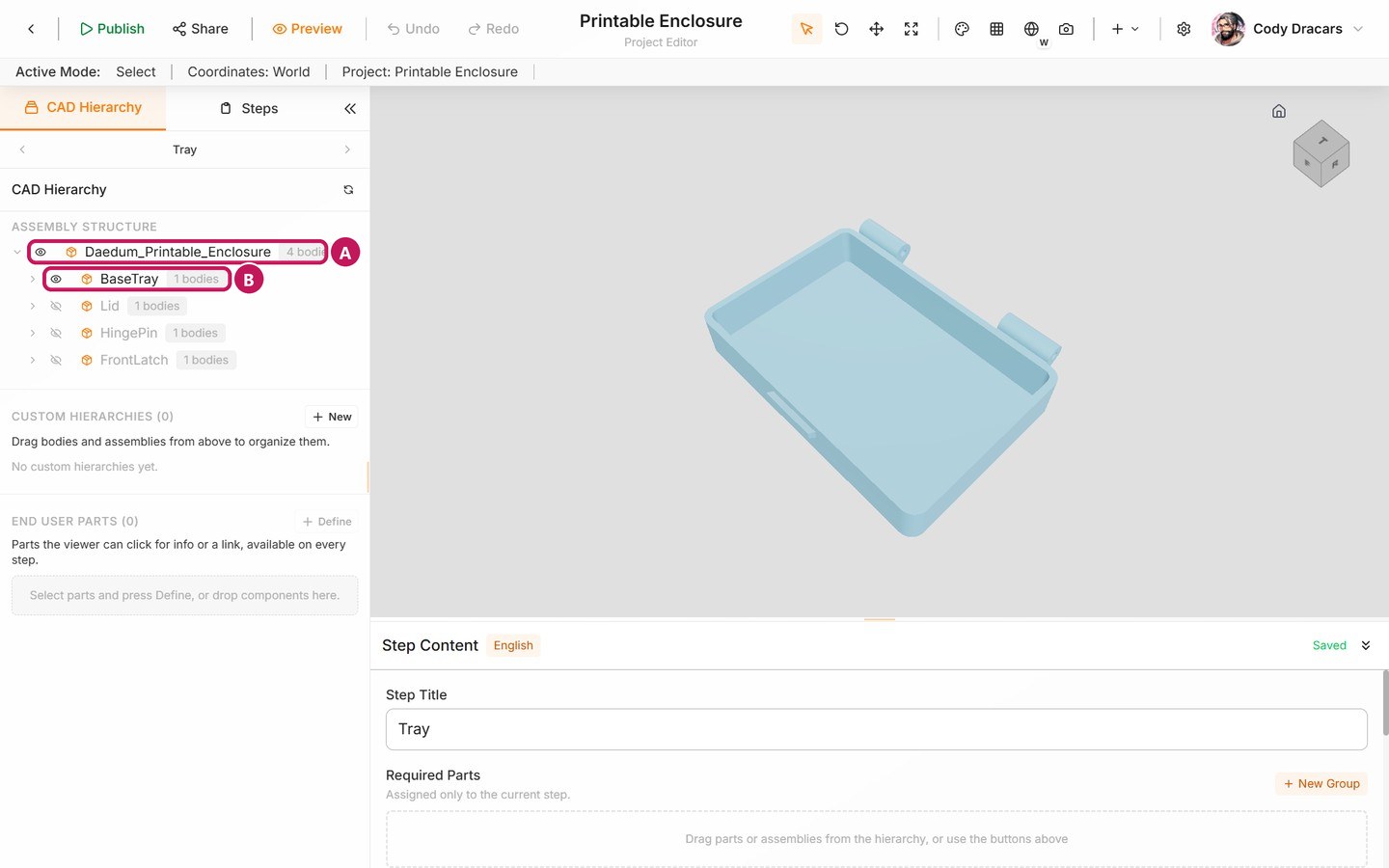
A hidden part has a crossed-out eye and a dimmed name.
- (A) The assembly eye shows or hides every part.
- (B) A part's own eye shows or hides just that one.
A manual is offline
An unpublished manual isn't deleted. Check the Publishing panel on the manual page to see its current state and what you need to do to bring it back online. If a version was hidden, show a visible version again or republish the manual. Publish, version, and embed explains versions and unpublishing.
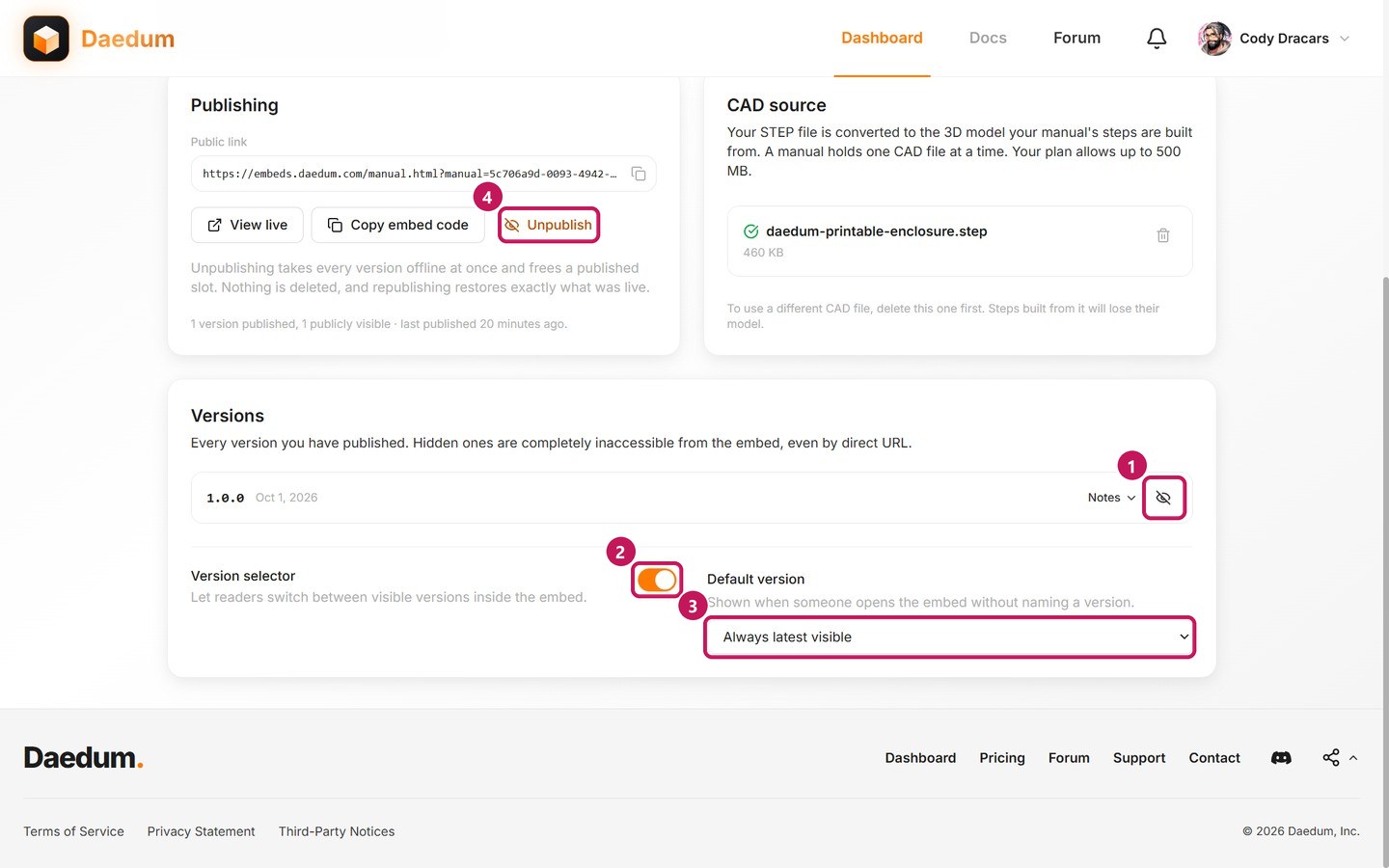
- (1) A hidden version isn't available to end users. Hiding a single version needs a Commercial plan.
- (4) Unpublish takes every version offline at once.
Showing the version again, or republishing, brings the manual back.
Publishing is blocked
Your plan sets limits on published manuals, pages, sections, and CAD upload size. The publish dialog tells you which limit you've hit:
- Published manuals: 2 on Hobbyist (shared with drafts), 3 on Professional, and 10 on Commercial. Each can be raised by buying extra published slots. Unpublishing a manual frees up its slot right away and deletes nothing.
- Pages per manual: 30 on Hobbyist, and unlimited on Professional and Commercial.
- Sections per manual: none on Hobbyist (Sections need Professional or higher), 6 on Professional, and unlimited on Commercial.
- CAD upload size: 100 MB on Hobbyist, 250 MB on Professional, and 500 MB on Commercial. A model you've already uploaded keeps working, even if you move to a smaller plan later.
Read the dialog's message first, then either trim the manual down or upgrade before trying again. Plans and limits lists everything each plan includes. If the dialog is ready to go but the public result is missing, finish publishing and check the Publishing panel on the manual page.
The public result looks stale
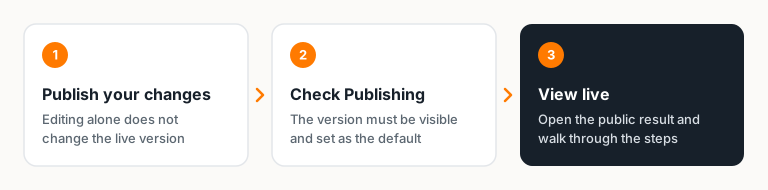
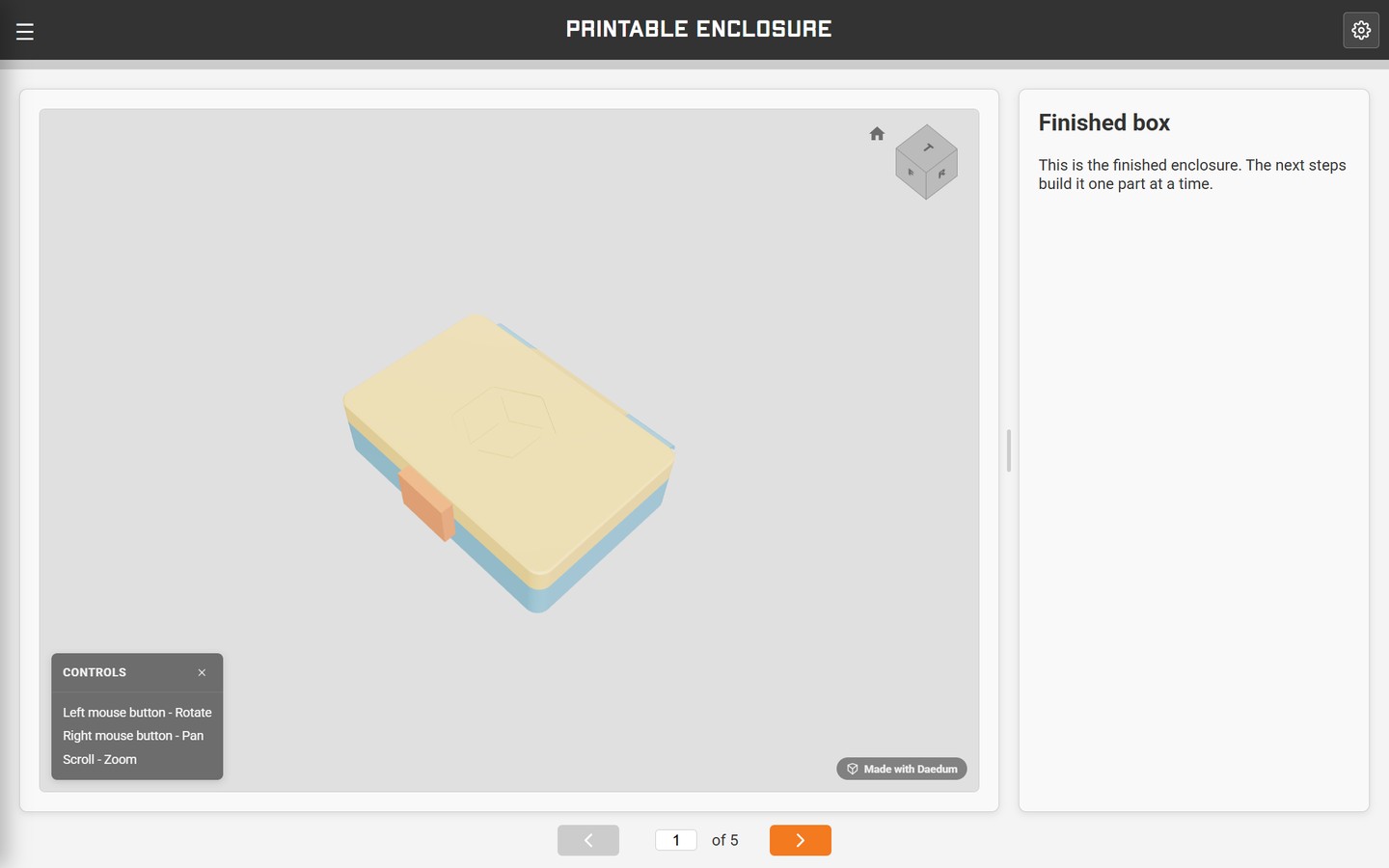
Editing the working manual never changes a version you've already published. After making changes, publish a new version, then use View live to check it. If the wrong version is showing, check the default version in the Publishing settings.