Features
Languages
Add languages, translate step text, and control what an end user sees when a step is not translated yet.
- Audience: Authors publishing to end users in more than one language.
- Before you begin: The manual has at least one step written in its default language.
- Starting point: The editor is open.
- End result: One or more added languages, with the step text translated and a fallback set up for anything that isn't.
Add a language
Select Settings in the editor toolbar, then choose the Languages tab. Search for a language by name, or type any valid language tag (for example cy or pt-BR). A language doesn't need to be in the suggestion list to be added.
Your default language is the one every step is already written in. If you need a different default, you can change it from this tab.
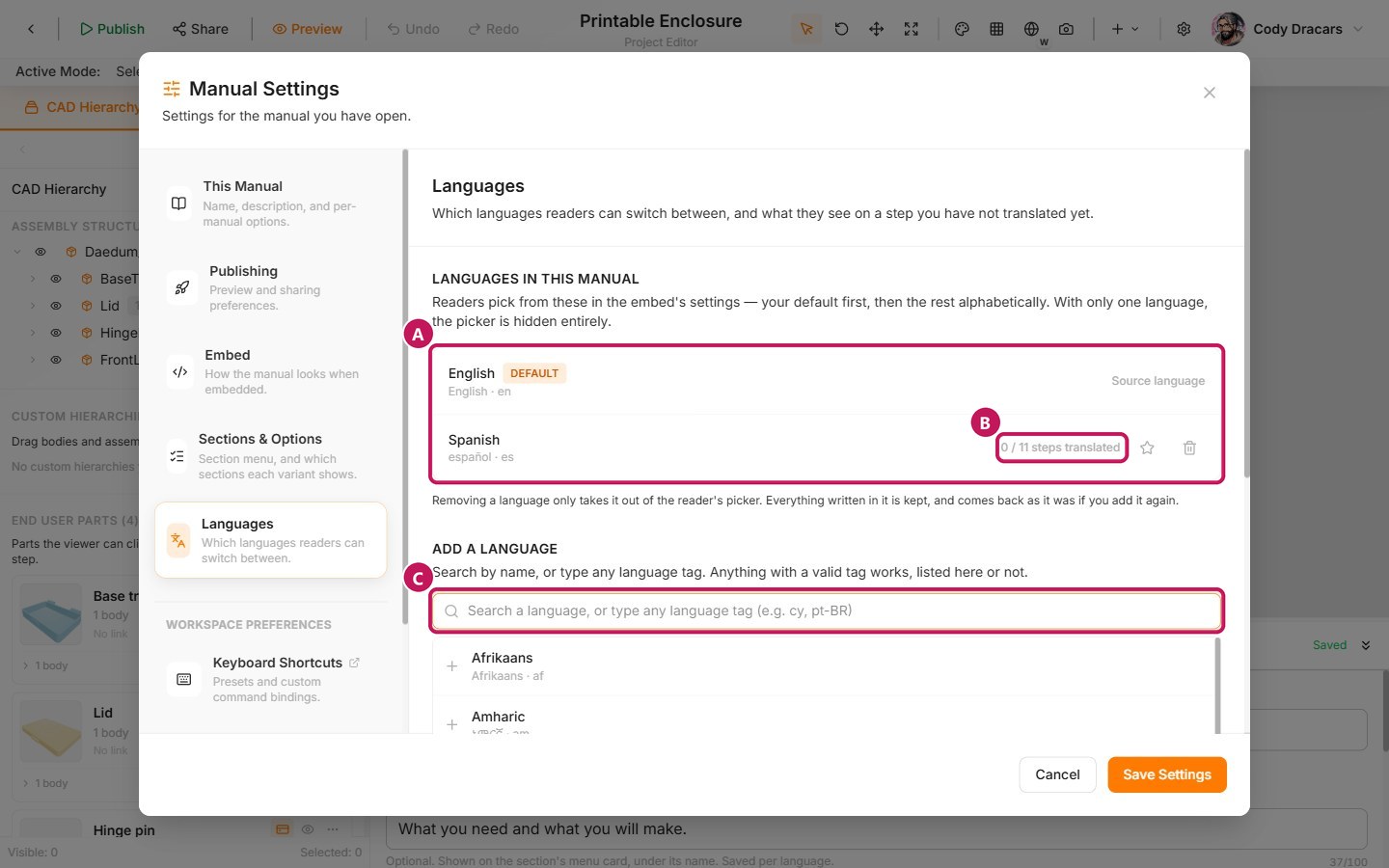
- (A) The list of languages in your manual, with your default first.
- (B) Once a second language is added, this count shows how many steps are translated.
- (C) Search, or type a language tag, here to add another one.
With only one language turned on, end users don't see a language picker at all.
Removing a language only takes it out of the end-user view's picker. Anything you already wrote in it stays in the manual, and it all comes back just as it was if you add the language again.
Translate a step
You turn languages on here, but the actual step text is translated on the steps themselves:
- Select a step.
- In the Step Content panel header, use the language dropdown next to the title to switch to the language you want to write in.
- Write the instruction text. It's saved for that language only. Switch back any time to see the default-language version.
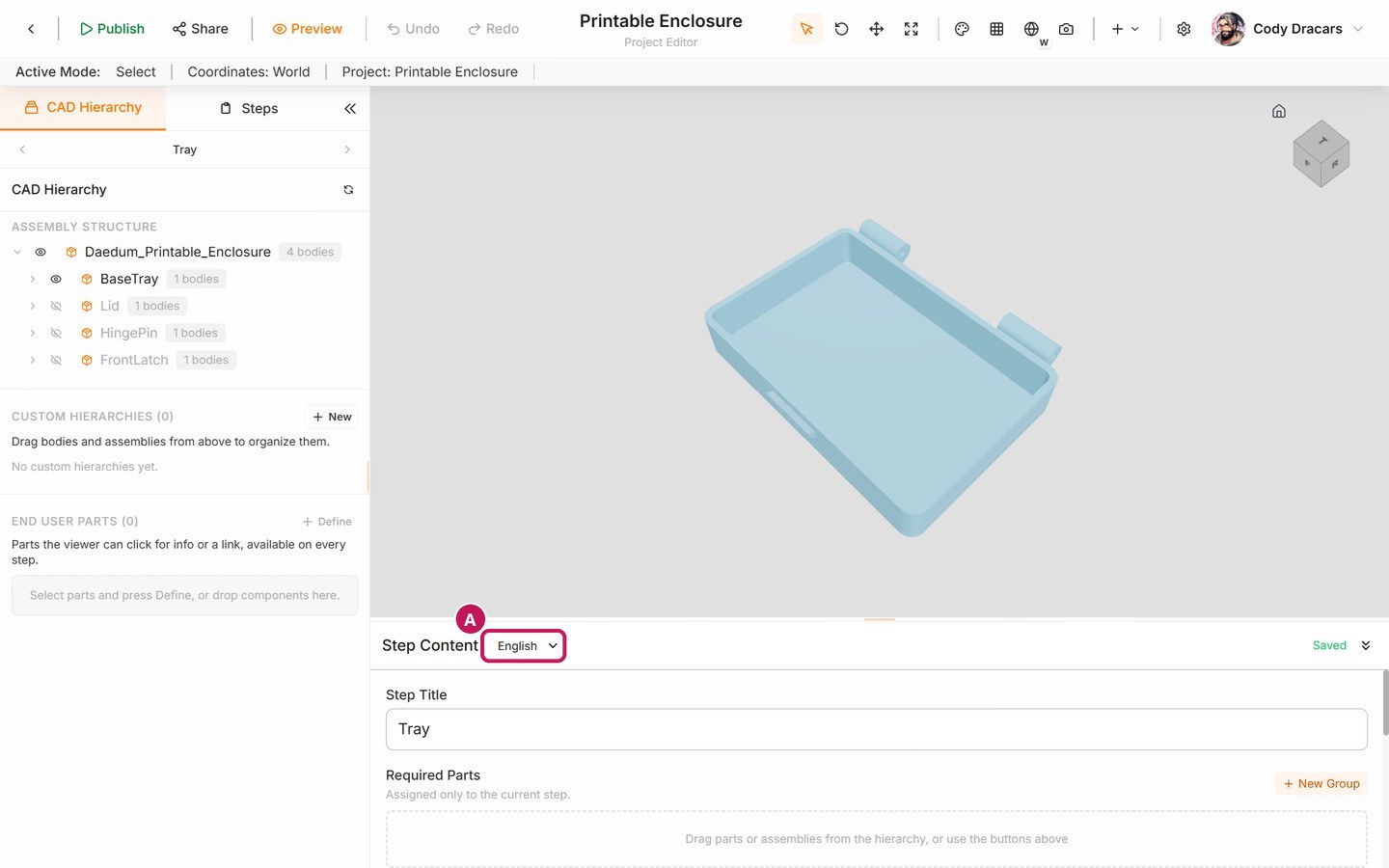
- (A) The language dropdown, which only appears once the manual has more than one language.
The Languages tab shows a translation count for each language you've added (for example, "12/20 steps translated"), so you can see how much is left. Steps with no text in the default language aren't counted, so a manual made only of 3D scenes still shows as complete.
Decide what happens when a step is not translated
Under Untranslated steps, choose what an end user sees on a step that has text in your default language, but not in the language they're reading:
- Show the default language: the step shows your default-language text instead of being blank. Nobody is left without instructions, but that end user will see a mix of languages.
- Show nothing: the step keeps its scene and parts, but shows no text, just a note that it isn't available in that language yet.
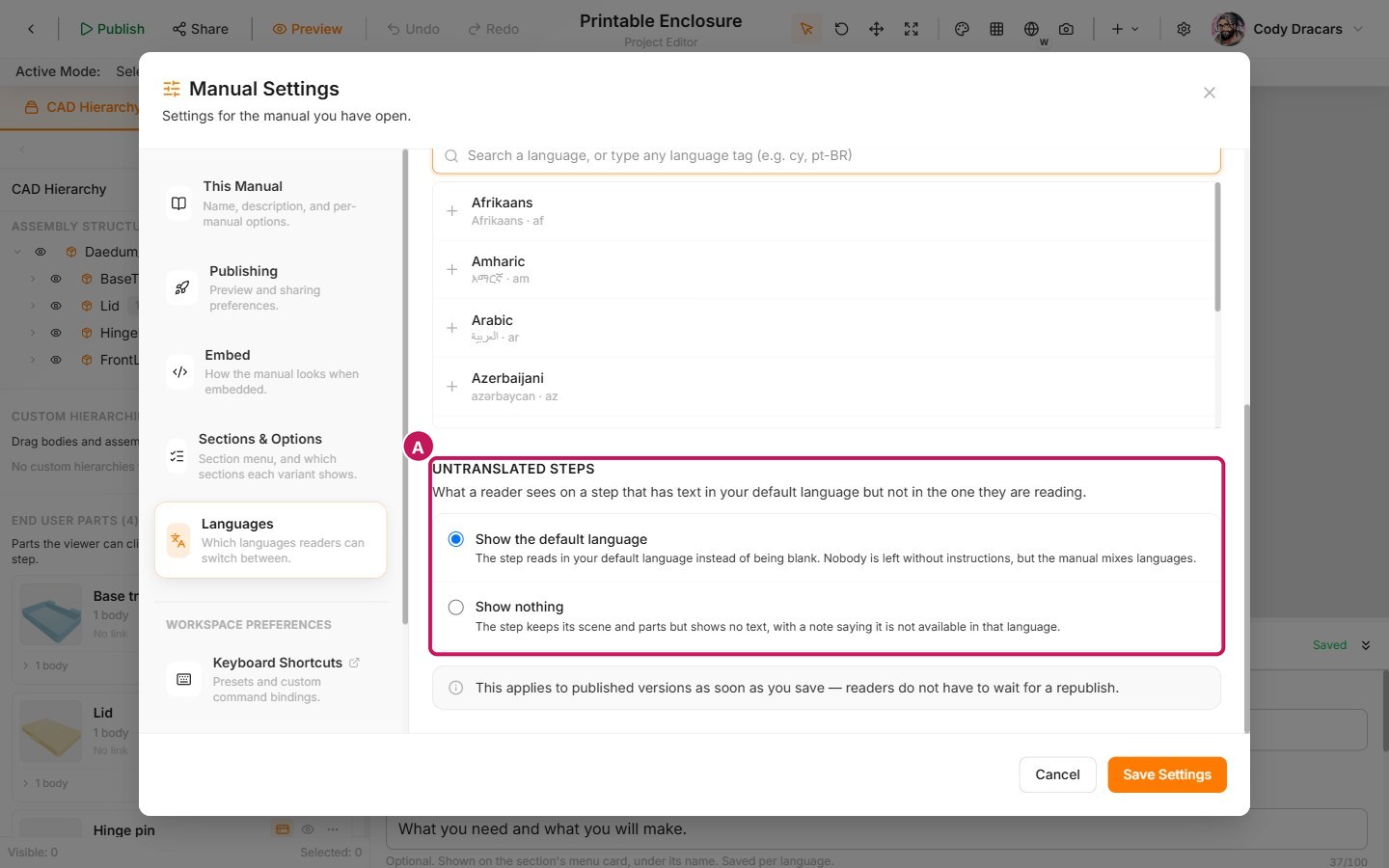
- (A) The two choices for Untranslated steps.
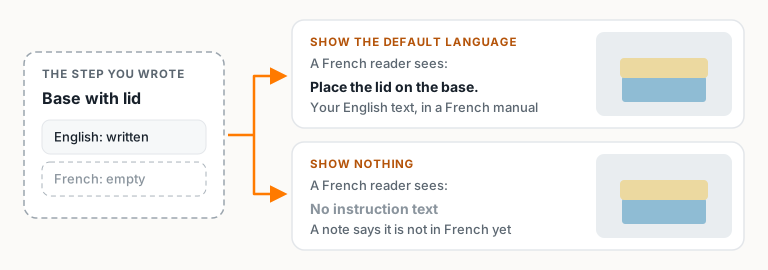
This setting kicks in on published versions as soon as you save it. End users don't have to wait for a republish.
Know what stays in English
Your step text shows up in every language you add. The embed's own interface (its buttons and labels) has only been translated into about ten languages so far. If an end user reads in a language outside that set, they'll see your translated steps inside an interface that isn't translated.
The selector and section-menu labels from Sections and build options (a paid feature) are translated separately, in that same settings area, not here.